User. Keyword:Advanced Search
5. Keyword/Advanced Search
There are types of search that can be done on the ARCS site within a project. The first type of search is a Keyword Search. This search uses the entered keyword(s) and searches across metadata and subject fields. An Advanced Search is the best way to find a specific resource on the ARCS site. This search uses narrower fields so it is best used to find a known resource rather than a general search. You can do a Cross-Project Search if you use the search bar from the ARCS landing page without first selecting a project. There is more information on this in the cross-project search information.
For a Keyword Search, you must first be within a project,
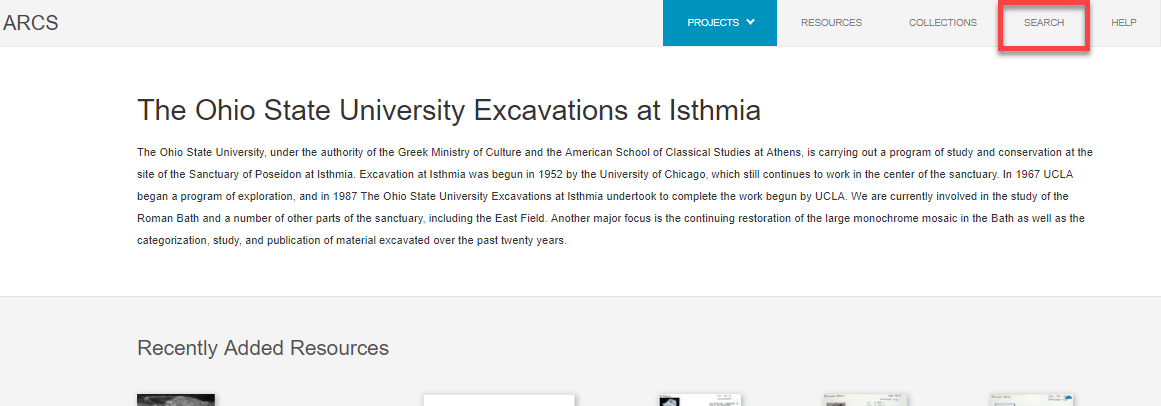
- Click on the Search tab at the top of any page within the project.
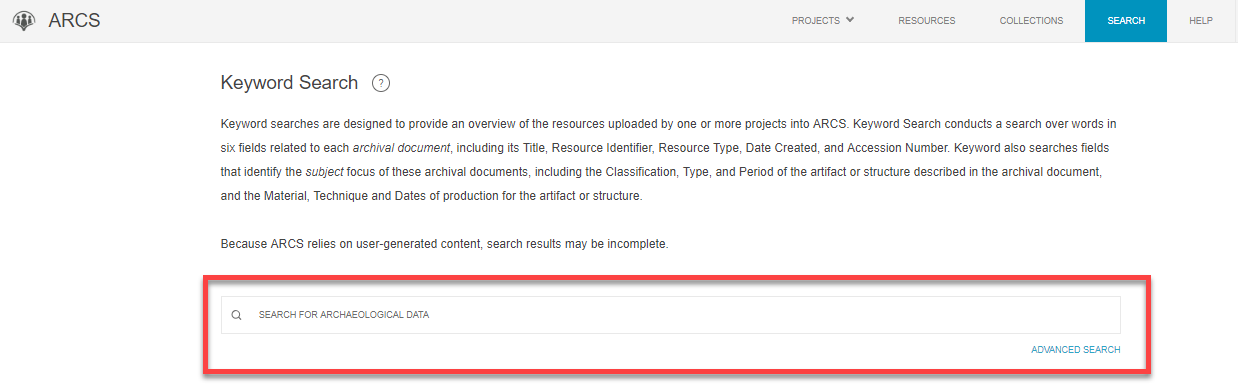
- Enter your desired keyword(s) into the search bar. Entering multiple words separated by commas will act as two separate searches?
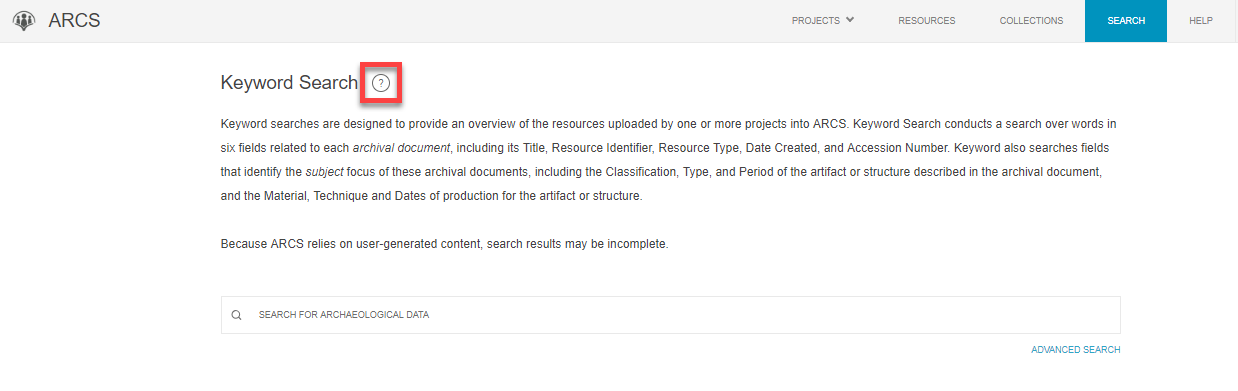
a. Note that when entering multiple words, the Keyword Search will generate results where all words in the search are present in any of the fields. Click the circled question mark next to Keyword Search for more information about this process and specific help with searching dates.
-
Hit the Enter or Return key on your keyboard to submit your search.
-
Your keyword(s) will be searched in each of the six fields related to each document: Title, Resource Identifier, Resource Type, Date Created, and Accession Number as well as subject fields: Classification, Type, and Period of the artifact or structure described in the archival document, and the Material, Technique and Dates of Production for the artifact or structure.
-
There is specific help with searching dates in the Keyword Search in the circled question mark at the top of the search page.
For an Advanced Search,
- Click Advanced Search under the Keyword Search bar to navigate to the search form.
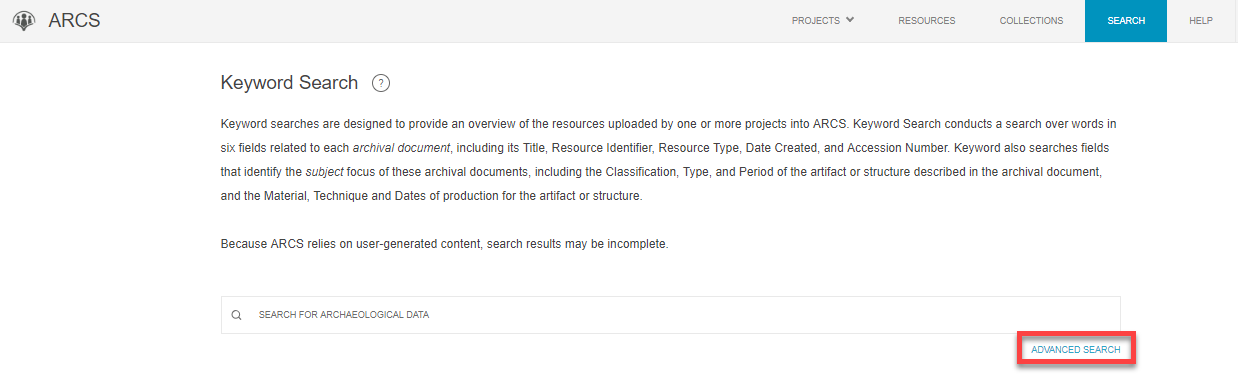
-
Fill out the fields for the Season, Excavation, Resource information, Specific Page information, or Subject of Observation that pertain to the resources you are trying to find. These do not need to be completely filled out for the Advanced Search to work.
-
Click Search when you have entered all of your information.
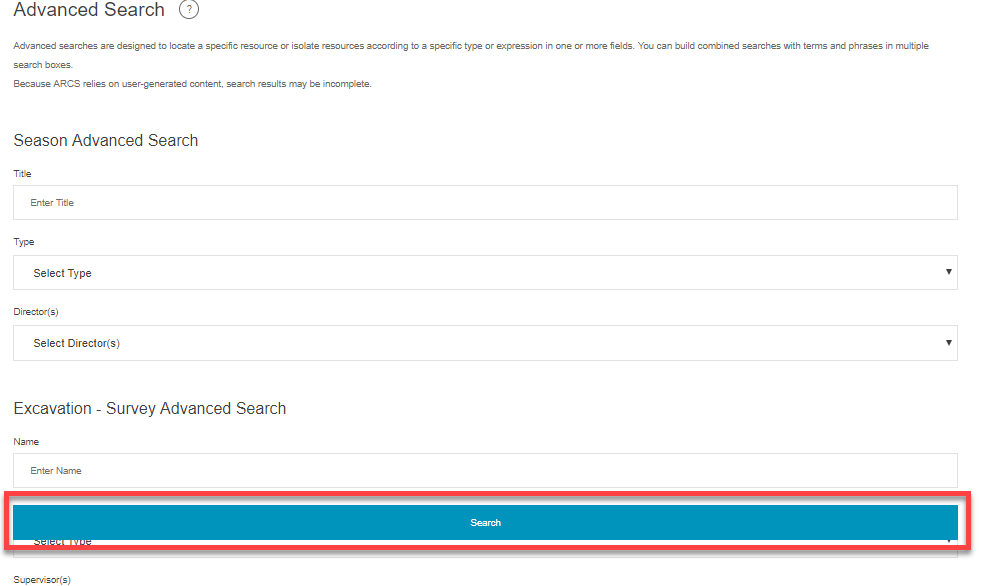
- There is specific help with searching in the Advanced Search in the circled question mark at the top of the search page.
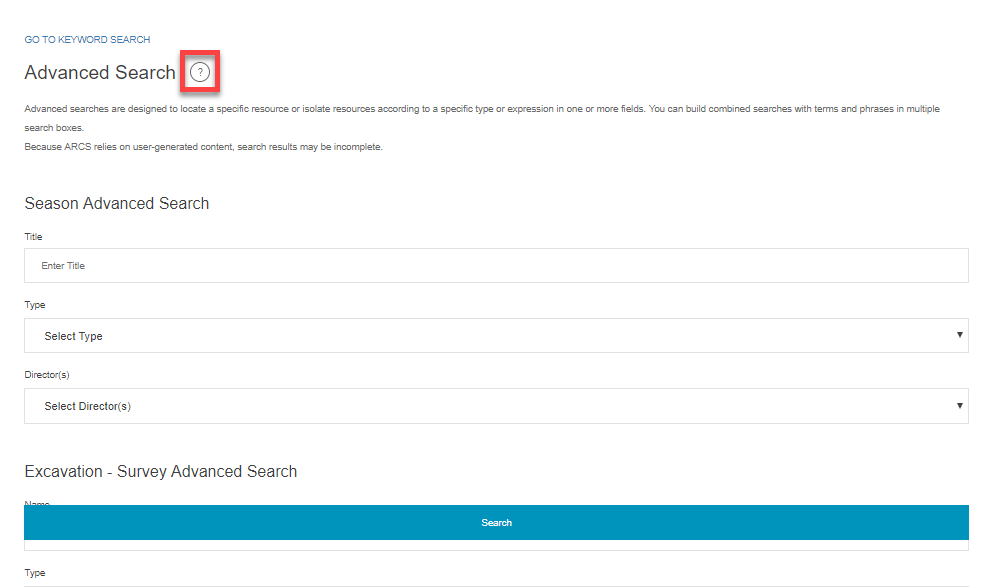
Once your results are generated,
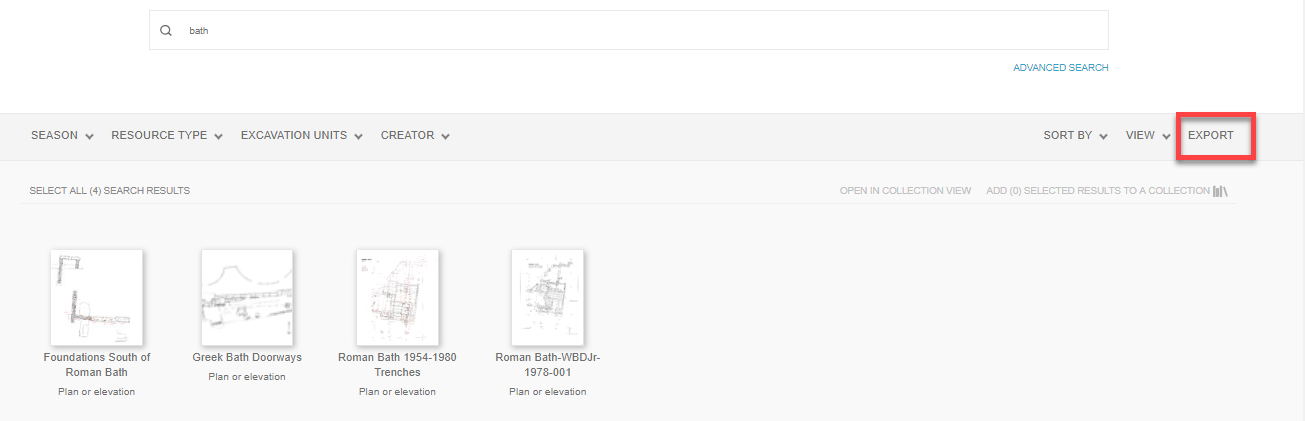
- Filer them by the fields at the top of the results page: select specific Seasons, Resource Types, Excavation Units or the resource Creator.
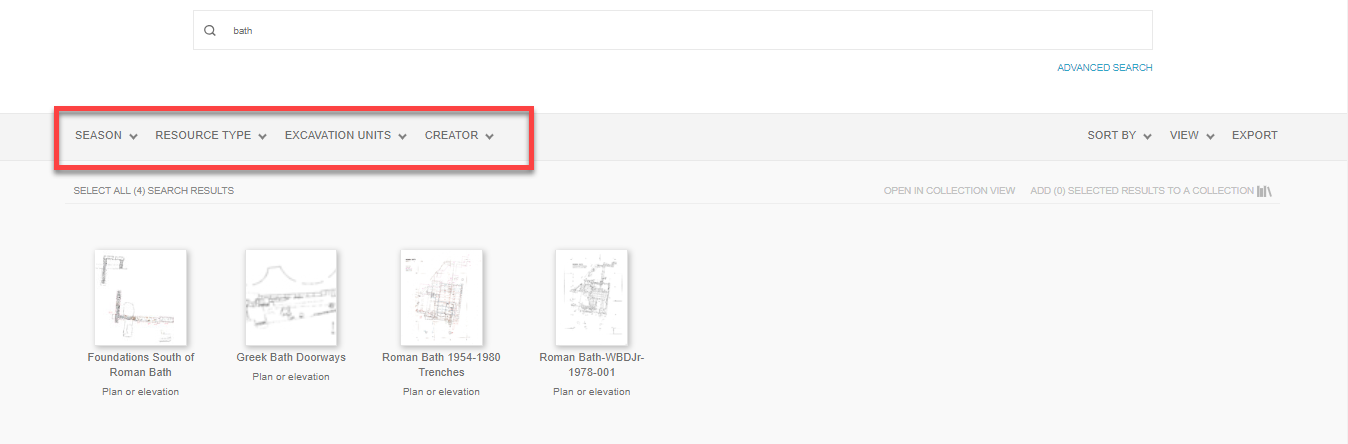
- Use the Sort By drop-down menu to order your results either by ascending or descending title.
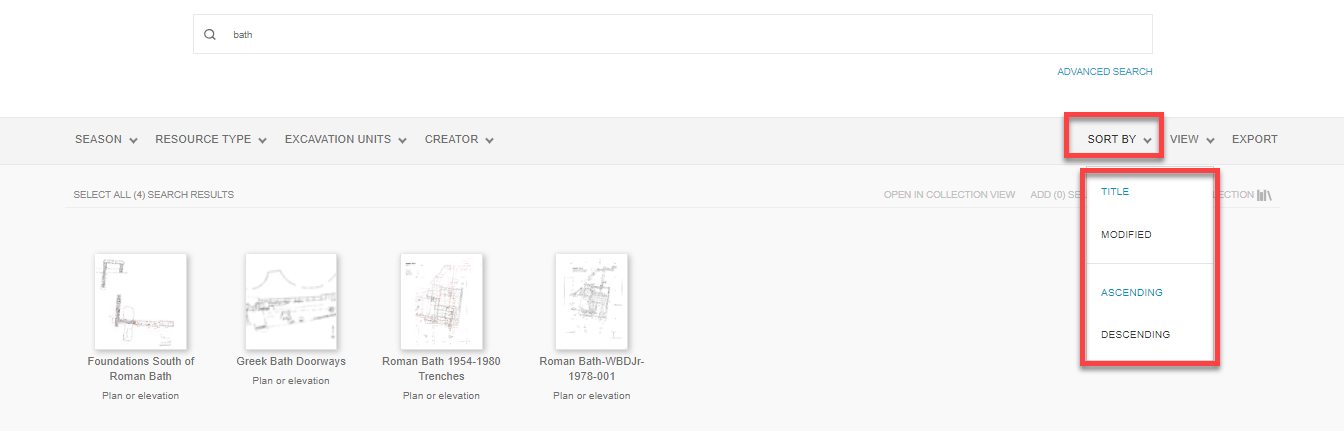
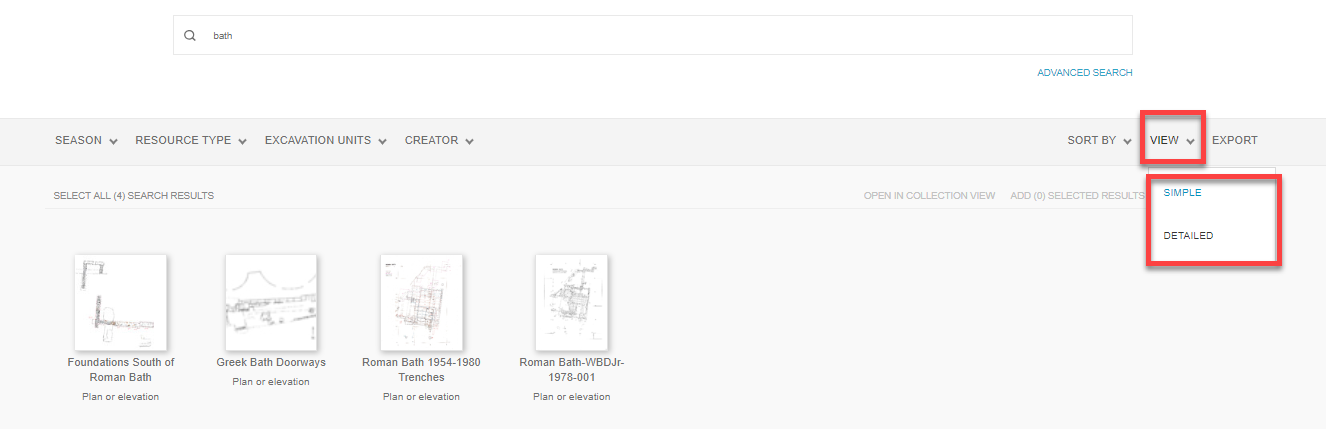
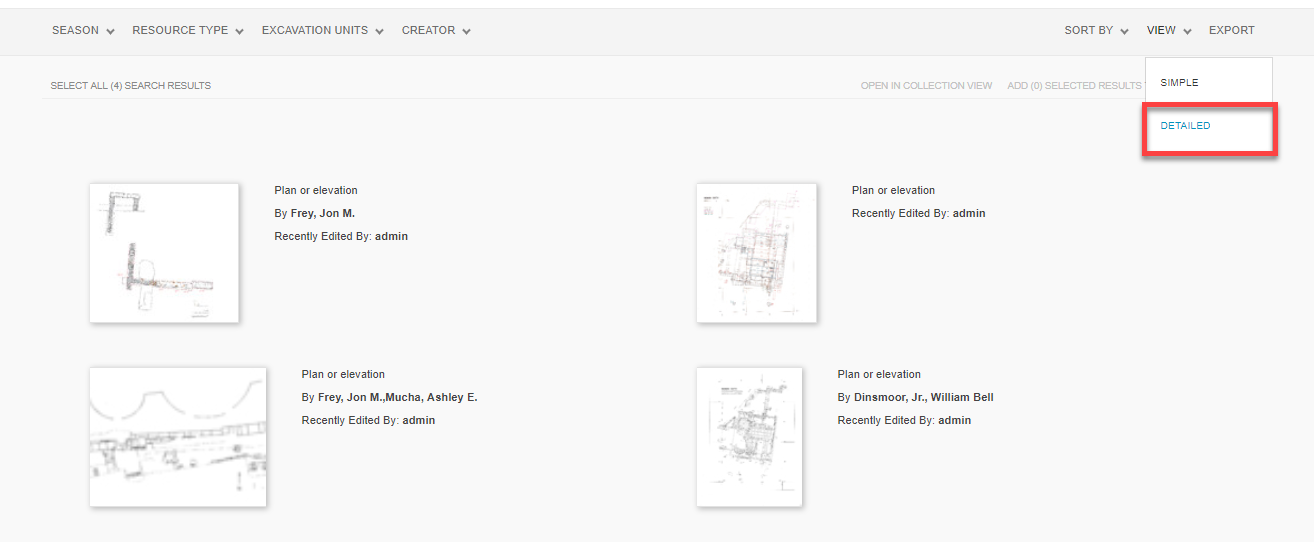
- Sort by ascending or descending as well as select the viewing option to be either Simple or Detailed.
a. Simple View
b. Detailed View
- Export the search by clicking Export to the far right.