Formerly published as gui-tool / agent-desktop-interface.
Let an AI agent click any desktop app by naming a grid cell — not guessing pixels.
A cross-platform Rust CLI for GUI automation: screenshots, window management, mouse and keyboard control, strict JSON in / JSON out. Zero dependencies — no crates, one small binary, direct OS APIs.





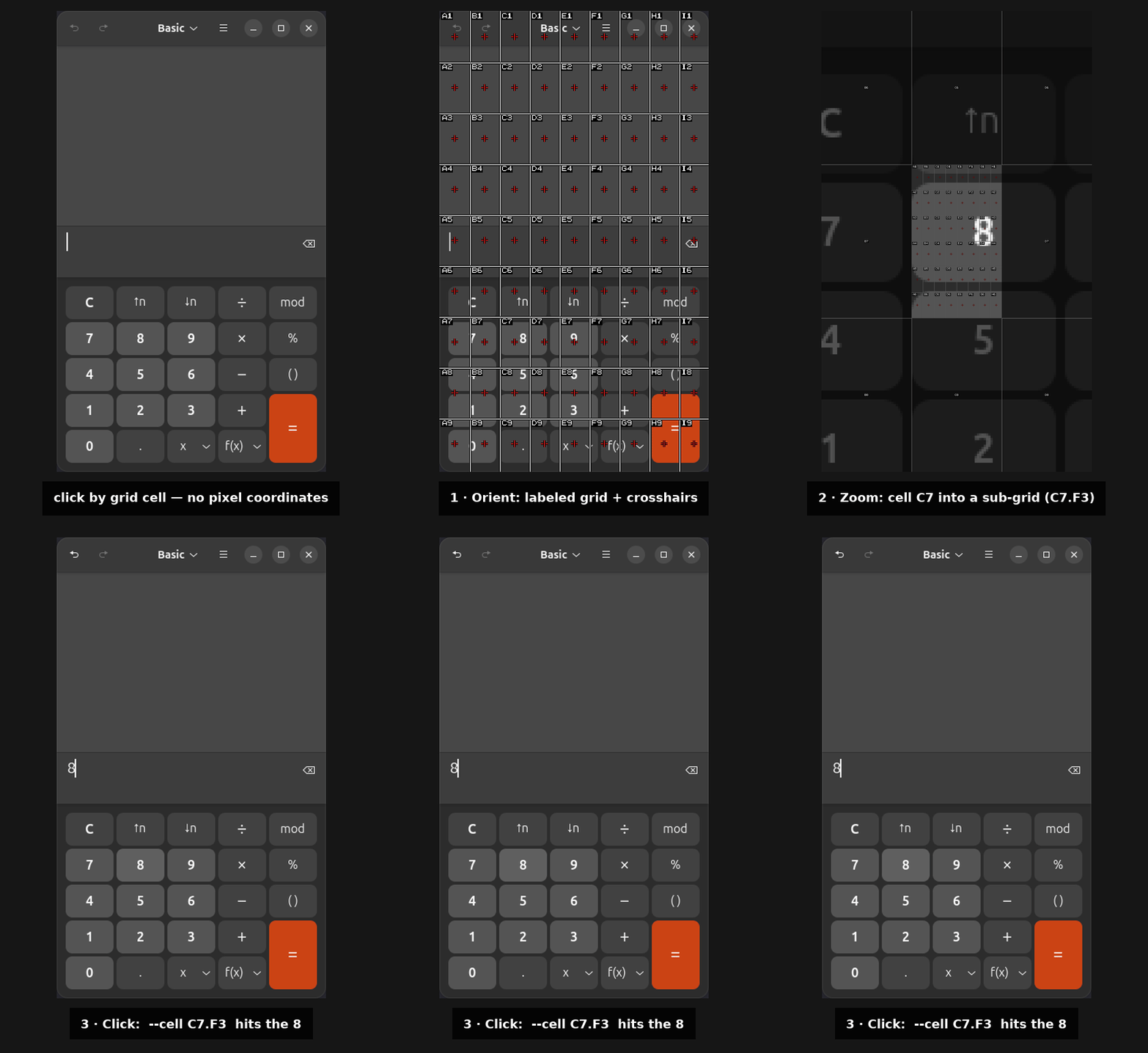
Real gridhand output — orient to a labeled grid → zoom into a cell → click the crosshair → verify.
Built for AI desktop agents (Claude Code, Codex, Gemini CLI, and friends), but it works fine as a general-purpose GUI automation tool.
Why it's different: agents are bad at guessing pixel coordinates from a screenshot, and every other automation tool makes them try. gridhand removes pixels entirely — it overlays a labeled grid with a crosshair at each cell's center, the agent names a cell, and the click lands exactly on that crosshair. Need more precision? Zoom into the cell for a sub-grid and name a sub-cell (C7.F3). It's the whole workflow in one line: orient → zoom → click → verify.
It sees pixels, not an accessibility tree. Most desktop-automation tools for agents find elements by reading the OS accessibility tree — which only helps when that tree exists, is complete, and is correct. gridhand never touches it. It works from the actual rendered screen, so it drives what tree-based tools can't see: games, <canvas> / WebGL apps, Flutter and other custom-drawn UIs, remote desktops and VNC, video, and any app with missing, mislabeled, or wrong accessibility data. If a human can see it, gridhand can click it.
Everything is hand-rolled against raw OS APIs — its own PNG encoder, D-Bus client, JSON output, and DEFLATE — so there are no crates to audit, no build surprises, and it runs natively on GNOME/Wayland where xdotool and pyautogui give up.
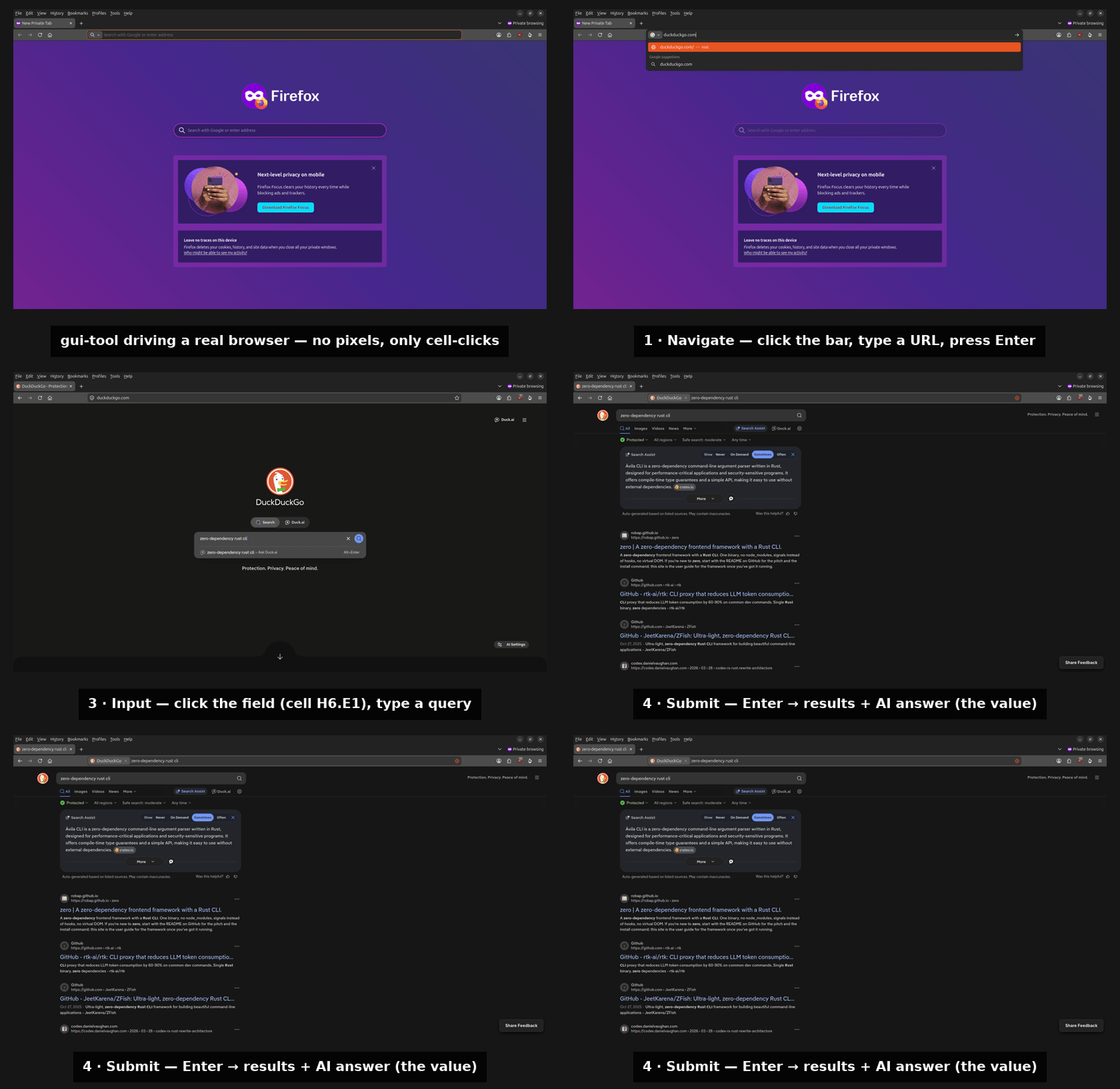
End-to-end in a real browser — navigate, click a field by cell, type, and submit, no pixel coordinates anywhere.
Concrete things it's been used for:
- Automating apps with no CLI or API — drive GUI-only software (legacy tools, proprietary apps, installers, settings panels) the same way a person would, so an agent can script a workflow that otherwise has no headless path.
- Debugging GUI applications — let an agent open the app, reproduce a bug by clicking through it, screenshot each state, and read what's actually on screen — hands and eyes for the parts a log file doesn't capture.
- Reaching what the accessibility tree can't — pixel-precise grid zoom clicks targets in apps whose accessibility data is missing, incomplete, or wrong: games,
<canvas>/WebGL, Flutter and other custom-drawn UIs, remote desktops, and video.
- Grid targeting: Overlay a labeled grid on screenshots with red crosshairs at each cell center. Click by cell label — no pixel coordinates. Supports recursive zoom (
B2.C1) and between-cell targeting (D3+E3). - No accessibility tree required: Targets purely from what's on screen — never AT-SPI, UI Automation, or the AX APIs. Works where the accessibility tree is missing, incomplete, or wrong: games,
<canvas>/WebGL, custom-drawn UIs (Flutter, etc.), and remote desktops. - Contextual zoom: Zoomed views show the target cell with a coarser sub-grid, surrounded by dimmed context from adjacent cells with parent-level labels for spatial orientation.
- No dependencies: Pure std Rust, direct FFI to OS APIs (CoreGraphics, user32.dll, D-Bus). Compiles to a single small binary.
- Wayland support: Works natively on GNOME/Wayland via XDG Desktop Portals and the
window-callsextension, where tools likexdotoolandpyautoguibreak. - JSON output: Every command returns structured JSON, so agents don't have to parse text output.
The full workflow — orient → zoom → zoom → ... → click → verify — in commands:
# Screenshot with labeled grid overlay (auto-scales: 16x9 for full screen)
gridhand screenshot --window-id 123 --grid --output /tmp/grid.png

# Zoom into a cell — shows sub-grid with dimmed context from neighbors
gridhand screenshot --window-id 123 --grid --cell B2 --output /tmp/zoom.png

# Recursive zoom for precision
gridhand screenshot --window-id 123 --grid --cell B2.C1 --output /tmp/zoom2.png

# Click at a cell center (moves + clicks in one step)
gridhand mouse click --cell B2.C1 --window-id 123

# Target straddles two cells? Zoom/click centered on the boundary
gridhand mouse click --cell D3+E3 --window-id 123# Full screen
gridhand screenshot --output /tmp/screen.png
# Cropped to a specific window
gridhand screenshot --window "Firefox" --output /tmp/firefox.png
# Screenshot by window ID (cropped)
gridhand screenshot --window-id 2045481940 --output /tmp/app.png# List all windows (returns JSON array of IDs, titles, PIDs, and bounds)
gridhand windows list
# Bring a window to front by ID
gridhand windows raise 1234567890# Click at current position
gridhand mouse click
gridhand mouse click --button right
# Click at a grid cell center (moves + clicks in one step)
gridhand mouse click --cell B2 --window-id 2045481940
# Between-cell click (centered on boundary)
gridhand mouse click --cell D3+E3 --window-id 2045481940All targeting uses --cell with grid references. There are no pixel coordinate commands — zoom the grid until a crosshair is on the target, then click.
# Type text into focused window
gridhand key type "hello world"

# Press key combinations
gridhand key press "ctrl+a"
gridhand key press "alt+f4"
gridhand key press "super"
gridhand key press "ctrl+shift+t"

# Type into a specific window
gridhand key type "hello" --window "Terminal"
gridhand key press "ctrl+a" --window-id 2045481940A skill definition following the Agent Skills standard is included in skills/gridhand/SKILL.md.
1. Add gridhand to your PATH (after building):
# Linux/macOS
sudo ln -s $(pwd)/target/release/gridhand /usr/local/bin/gridhand

# Or without sudo
ln -s $(pwd)/target/release/gridhand ~/.local/bin/gridhand
2. Install the skill:
# Claude Code
mkdir -p ~/.claude/skills/gridhand
cp skills/gridhand/SKILL.md ~/.claude/skills/gridhand/SKILL.md

# Codex
mkdir -p ~/.codex/skills/gridhand
cp skills/gridhand/SKILL.md ~/.codex/skills/gridhand/SKILL.mdPick the easiest that fits. On Linux and macOS there's a one-time platform-setup step after you get the binary (input permissions and the GNOME window-calls extension on Linux; Accessibility + Screen Recording permissions on macOS) — see Platform Requirements. Windows needs nothing.
Prebuilt binary (no Rust toolchain) — grab your platform's archive from the latest release, then:
tar xzf gridhand-*.tar.gz                      # or unzip on Windows
sudo install gridhand-*/gridhand /usr/local/bin/   # or: mv … ~/.local/bin/
From crates.io (needs the Rust toolchain):
cargo install gridhandFrom source:
git clone https://github.com/ZachRouan/gridhand
cd gridhand
./setup.sh          # detects your OS, does platform setup, and builds
After a prebuilt or cargo install on Linux/macOS, run the platform setup without rebuilding — either follow the manual steps in Platform Requirements, or from a clone:
./setup.sh --skip-build| Platform | Version | Setup |
|---|---|---|
| Linux | GNOME/Wayland | input group + udev rule + window-calls extension (handled by setup.sh) |
| macOS | 10.15+ | Grant Accessibility + Screen Recording permissions in System Settings |
| Windows | 8+ | None (cargo build --release in MSYS2, Git Bash, or PowerShell) |
The macOS Accessibility permission grants the right to synthesize mouse/keyboard input (post
CGEvents) — it is not used to read the accessibility tree.gridhandnever inspects the tree on any platform.
~9,100 lines of Rust, no external crates. Each platform uses direct OS APIs:
- Linux:
/dev/uinputfor input via ioctl syscalls. Full D-Bus wire protocol implementation (SASL auth, message framing, type marshalling) for XDG Desktop Portal screenshots and GNOMEwindow-callswindow management. - macOS: CoreGraphics FFI (
CGEventCreateMouseEvent,CGEventCreateKeyboardEvent) for input.CGWindowListCreateImagefor screenshots. Objective-C runtime bindings for window activation. - Windows:
user32.dll(SendInput,EnumWindows,SetForegroundWindow,VkKeyScanW) andgdi32.dll(BitBlt,GetDIBits) for input, window management, and screenshots.
- macOS window raise activates the owning application, not necessarily the specific window — if an app has multiple windows, the one that ends up frontmost may not be the one you targeted.
- macOS screenshots use
CGWindowListCreateImage, a CoreGraphics API deprecated in macOS 14. It still works today; a ScreenCaptureKit-based backend is future work. - Linux desktop-size detection prefers GNOME Mutter's
DisplayConfigD-Bus interface and falls back to a DRM-sysfs heuristic on non-GNOME/non-Mutter sessions.
MIT