This file contains documentation about features that don't fit into any of the other docs.
- Build from source
- Getting started
- Cheat sheet
- Configuration
- Settings
- Keybindings
- Finders
- Sessions
- Language servers
- Treesitter
- Debugger
- Plugins
- Virtual filesystem
- Moves
- Markdown
- Dashboard
- Harpoon
- Undo Tree
- Internals
- Supported Vim keybindings
Nev has a configurable layout system. You can put tabs into splits, splits into tabs, and more.
You can also define multiple layouts and switch between them easily.
The following types of layout exist:
vertical- Lays out children vertically.horizontal- Lays out children horizontally.alternating- Lays out children horizontally and vertically, alternating between both directions. The initial split is vertical.tab- Shows one child, and a tab bar to switch tabs.center- Shows one view in the center, and optionally up to four views around it.
Different types of layouts can be nested in a tree structure.
Slots are used to specify where to open new views (files, terminals, etc.) or which view to focus.
To specify multiply slots for nested layouts, separate the slots with ..
Say you have a tab layout which contains a center layout,
then *.center would refer to the center slot in the active tab.
Because the empty string acts the same as * you can also write this as .center
center:
*- Active childleft,right,top,bottom,center0through4- Same asleft,rightetc, in the order from above
vertical, horizontal, alternating and tab:
0,1, ...n- Replace thenthchild- Anything starting with
*or '+':+- Insert instead of replace (replace is the default)*or empty string - Insert/Replace at currently active child<- Insert/Replace one to the left of the currently active child>- Insert/Replace one to the right of the currently active child<>- Insert/Replace one to the right of the currently active child, or the left if the right side would be above the maximum child count for the layout.?- When inserting a new child and the layout already has the maximum number of children, the last child is replaced by default. With this replace the child at the specified index instead. Only applicable when also specifying+
*will replace the active view+will insert after the last view*+will insert after at the active view, shifting the active view to the right. If max children are reached the last view will be removed*+?will insert after at the active view, shifting the active view to the right. If max children are reached the active view will be replaced.*+>?will insert after at the active view, shifting the active view to the right. If max children are reached the active view will be replaced.
Slots for identifying a view (used in commands like focus-view) in the center layout:
*- Active childleft,right,top,bottom,center0through4- Same asleft,rightetc, in the order from above
Slots for identifying a view (used in commands like focus-view) in the vertical, horizontal, alternating and tab layout:
*- Active child0,1, ...n-nthchild
You can also use ** as a slot to refer to the layout containing active view.
You can define named slots per layout in ui.layout.<layout-name>.slots.<slot-name> and then use #slot-name as a slot.
This allows you to define e.g. keybindings using named slots so that they can work for different layouts.
focus-next-view "**"- Focus the next view in the layout containing the active view.move-view "+.center"- Moves the active view into the center slot of a newcenterlayout in a new slot in the root layout.move-view ".left"- Moves the active view into theleftslot of the center layout in the active slot of the root layout.open "file.txt" ".*+?"- Assuming atablayout containing e.g. ahorizontallayout, this will open the file in the current tab in a new split which is inserted at the index of the active split. If thehorizontallayout already has the maximum number of children the active view is replaced instead.
Defining layouts in a settings file:
// settings.json
{
  "ui.layout.default": "vim",             // The name of the layout to use by default

  "ui.layout.vim": {                      // Name of the layout, can be anything. This layout is closest to Vim
    "slots.default": "**.*",              // The slot into which to add new views when you open them (insert new split in current tab)
    "slots.scratch-terminal": "**.*<>",   // Slot used to open scratch terminals
    "slots.build-run-terminal": "**.*<>", // Slot used to open terminals used for build or run tasks
    "slots.new-tab": "+",                 // Slot used to open new tabs
    "kind": "tab",                        // Root layout uses tabs
    "childTemplate": {                    // Layout config for tab contents
      "kind": "horizontal",               // Inside of each tab is an alternating layout
      "max-children": 1,                  // Only allow one view to be opened in this layout. If not specified then
                                          // there is no limit. Splits are created on demand, this is just the base.
    },
  },
  "ui.layout.tabs-in-splits": {
    "slots.default": ".+",                // Insert new tab in current split
    "kind": "alternating",                // Root layout uses alternating splits
    "childTemplate": {
      "kind": "tab",                      // inside of each split are tabs
    },
  },
  "ui.layout.vscode": {                   // This layout tries to imitate the VS Code layout
    "slots.default": "center.*.+",        // By default open views in a new tab of the active split of the center slot of the root layout
    "slots.scratch-terminal": "bottom.+", // Open scratch terminals in a new tab in the bottom slot of the root layout
    "slots.build-run-terminal": "left.+", // Open build/run terminals in a new tab in the left slot of the root layout
    "kind": "center",                     // Root layout
    "centerTemplate": {                           // Specify which layout to use in the center
      "kind": "alternating",              // In the center we basically have the tabs-in-splits layout
      "childTemplate": {
        "kind": "tab",
      }
    },
    "bottomTemplate": {                           // In the bottom slot are just tabs
      "kind": "tab",
    },
    "leftTemplate": {                             // In the left slot are just tabs
      "kind": "tab",
    },
    "rightTemplate": {                            // In the right slot are just tabs
      "kind": "tab",
    },
  },
}
Vertical layout:
+---------+
| Child 0 |
+---------+
| Child 1 |
+---------+
| Child 2 |
+---------+
Horizontal layout:
+----+----+----+
| C0 | C1 | C2 |
+----+----+----+
Alternating layout:
+-------------------------+
|                         |
|         Child 0         |
|                         |
+-------------------------+
+------------+------------+
|            |            |
|   Child 0  |  Child 1   |
|            |            |
+------------+------------+
+------------+------------+
|            |  Child 1   |
|   Child 0  +------------+
|            |  Child 2   |
+------------+------------+
Tab layout:
+------------------------+
| [Tab0] [Tab1] [Tab2]   |
+------------------------+
|        Child n         |
+------------------------+
Center layout:
+---------+-----------+---------+
|         |   Top     |         |
|         +-----------+         |
|  Left   |  Center   | Right   |
|         +-----------+         |
|         |  Bottom   |         |
+---------+-----------+---------+

With empty top and right slots:
+---------+-----------+
|         |           |
|         |  Center   |
|  Left   |           |
|         +-----------+
|         |  Bottom   |
+---------+-----------+
Nested layouts:
Layout config:
{
  "kind": "center",
  "center.kind": "alternating",
  "bottom.kind": "tab",
}
+---------------------------------------------------------------+
|             |                         |                       |
|             |                         |                       |
|             |                         |                       |
|             |                         |                       |
|             |        Child 0          |     Child 1           |
|             |        of horizontal    |     of horizontal     |
|             |                         |                       |
|    Left     |                         |                       |
|             |                         |                       |
|             |-------------------------------------------------|
|             | [Tab 0] [Tab 1]                                 |
|             |-------------------------------------------------|
|             |                                                 |
|             |                   Child of tab                  |
|             |                                                 |
+---------------------------------------------------------------+
To create arbitrary splits like in e.g. Vim you can use the wrap-layout command to wrap the current view
in either a horizontal or vertical layout, and specify the temporary flag so that the layout is
automatically replaced by its last remaining child if you close a child view and only one child remains.
Example keybindings:
// keybindings.json
{
  "editor": {
    // Create a vertical split which is closed automatically when closing the second last child
    "<A-v>": ["wrap-layout", {"kind": "vertical", "temporary": true, "max-children": 2}],
    // Create a horizontal split which is closed automatically when closing the second last child
    "<A-h>": ["wrap-layout", {"kind": "horizontal", "temporary": true, "max-children": 2}],
  }
}
If all you want is splits, you can define your base layout like this and use keybindings like above to create splits on demand:
// settings.json
{
  "ui.layout.raw-splits": {
    "slots.default": "**.*", // Open new views in the active view
    "slots.scratch-terminal": "**.*<>", // Open scratch terminals in a neighboring view (if one exists) or the current view
    "slots.build-run-terminal": "**.*<>",
    "kind": "horizontal",
    "max-children": 1,
  },
}There are multiple commands used to manipulate the layout (change active view, open/close/hide/move/resize views, etc.):
focus-view <slot>- Set the view in the specified slot to be the active one.focus-view-index <slot> <index>- Set the active child index of the layout specified by the given slot.focus-view-left,focus-view-right,focus-view-up,focus-view-down- Switch focus to the view in the corresponding direction.focus-next-view <slot>,focus-prev-view <slot>- Focus the previous/next child of the layout in the specified slot.close-active-view- Permanently close the active view.hide-active-view- Hide the active view, removing it from the current layout tree. To reopen the view, use commands likeopen-last-vieworchoose-open.open-prev-view- Go back in the history of focused views and open the previous one.open-next-view- Go forward in the history of focused views and open the next one.open-last-view- Open the last view that was hidden.move-view <slot>- Move the active view to the specified slot.move-active-view-prev,move-active-view-next- Move the active view to previous/next slot in the parent layout.move-active-view-first- Move the active view to the first slot in the parent layout.toggle-maximize-view-local <slot>- Toggles themaximizedflag of the layout specified by the given slot.toggle-maximize-view- Toggles the global maximized flag.change-split-size <change> <vertical>- Change the size of the current split, either vertically or horizontally. The size of a split is specified as a percentage of the total width available and is between0and1.wrap-layout <layout>- Wraps the active view with the specified layout. You can either pass a JSON object specifying a layout configuration (like in a settings file) or a string representing the name of a layout.set-layout <name>- Changes the current layout. Layouts are configured inui.layout.<name>choose-layout- Opens a popup which allows you to switch between all configured layouts.
To create an alias for a command add this to a config file:
// settings.json
{
  "alias.q": "quit",
  "alias.wq": ["write-file", "quit"],

  // alternative syntax (use + to add new aliases without deleting existing ones defined in prior configs):
  "+alias": {
    "q": "quit",
    "wq": ["write-file", "quit"],
  }
}
This defines two aliases q and wq. When you run the q command it will run quit,
and if you run wq then it will run write-file and then quit.
Aliases can use other aliases, so the following is possible:
// settings.json
{
  "alias.q": "quit",
  "alias.wq": ["write-file", "q"],
}
Aliases can be bound to keys, so the following will run the wq alias when pressing <SPACE>wq:
// keybindings.json
{
  "editor": {
    "<SPACE>wq": "wq",
  },
}
You can specify parameters and forward parameters in aliases:
// settings.json
{
  "alias.q": "quit 1",
  "alias.wq": ["write-file @0", "quit @1"],
  "alias.echo": [
    // the echo-args command just logs all arguments to the log file
    "echo-args @0 @1",
    "echo-args @",
    "echo-args @@"
  ],
}
@@ refers to all arguments, @n refers to the nth argument and @ refers to the remaining arguments after the previous @n (or all arguments if there is no @n before)
The remaining arguments for @ are tracked across multiple commands, so in this example the second echo-args command
doesn't receive any arguments if you only pass two arguments to the alias, because the first command already consumes both.
You can use the same indices for @n multiple times.
Here are some examples of running these aliases and the commands that will be executed:
q->quit 1wq "test.txt" 1->write-file "test.txt",quit 1echo "a" "b"->echo-args "a" "b",echo-args,echo-args "a" "b"echo "a" "b" "c" "d"->echo-args "a" "b",echo-args "c" "d",echo-args "a" "b" "c" "d"
Nev has a builtin terminal. To create a terminal view there are two commands:
terminal.create <command> [<options>]- Creates a new terminal view, running the specified command. Usually the command is something likebashorpowershell:
  ## Opens a new terminal by running `command`.
  ## `command`                   Program name and arguments for the process. Usually a shell.
  ## `options.group`             An arbitrary string used to control reusing of terminals and is displayed on screen.
  ##                             Can be used to for example have a `scratch` group and a `build` group.
  ##                             The `build` group would be used for running build commands, the `scratch` group for
  ##                             random other tasks.
  ## `options.autoRunCommand`    Command to execute in the shell. This is passed to `command` through stdin,
  ##                             as if typed with the keyboard.
  ## `options.closeOnTerminate`  Close the terminal view automatically as soon as the connected process terminates.
  ## `options.mode`              Mode to set for the terminal view. Usually something like  "normal", "insert" or "".
  ## `options.slot`              Where to open the terminal view. Uses `default` slot if not specified.
  ## `options.focus`             Whether to focus the terminal view. `true` by default.
terminal.run <shell> <command> [<options>]- Runs a command in a terminal, assuming the terminal is running some shell like program.
  ## Run the given `command` in a terminal with the specified shell.
  ## `command` is executed in the shell by sending it as if typed using the keyboard, followed by `<ENTER>`.
  ## `shell`                     Name of the shell. If you pass e.g. `wsl` to this function then the shell which gets
  ##                             executed is configured in `editor.shells.wsl.command`.
  ## `options.reuseExisting`     Run the command in an existing terminal if one exists. If not a new one is created.
  ##                             An existing terminal is only used when it has a matching `group` and `shell`, and
  ##                             it is not busy running another command (detecting this is sometimes wrong).
  ## `options.group`             An arbitrary string used to control reusing of terminals and is displayed on screen.
  ##                             Can be used to for example have a `scratch` group and a `build` group.
  ##                             The `build` group would be used for running build commands, the `scratch` group for
  ##                             random other tasks.
  ## `options.closeOnTerminate`  Close the terminal view automatically as soon as the connected process terminates.
  ## `options.mode`              Mode to set for the terminal view. Usually something like  "normal", "insert" or "".o
  ## `options.slot`              Where to open the terminal view. Uses `default` slot if not specified.
## `options.focus` Whether to focus the terminal view. `true` by default.The terminal by default has two modes, "normal" and "insert".
In insert mode almost every key press is forwarded to the terminal by default.
You can still override keys in insert mode (and by default F9 is mapped to exit to normal mode).
In normal mode only some keys are send to the terminal by default (e.g. arrow keys, home/end, enter, i/I/a/A to enter insert mode, etc.)
-
insertmode:Key Description Mode <F9>/cfExit to normal mode. cfhas to be pressed quickly.<C-ENTER>Enter and exit to normal mode. -
normalmode:Key Description Mode i/I/a/ASwitch to insert mode. Behavior matches Vim. <ENTER>,<HOME>,<END>, arrow keysSend to the shell like in insert mode CS-UPScroll up CS-DOWNScroll down <C-u>/CS-PAGE_UPScroll up more <C-d>/CS-PAGE_DOWNScroll down more gg/CS-HOMEScroll to the top. G/CS-ENDScroll to the bottom. <C-v>/pPaste from clipboard C-eOpen the terminal output in a text editor, allowing you to e.g. search through it
Open hidden terminals
To open a hidden terminal you can't use the choose-open command, as that command only shows files you have open.
You need to use the terminal.select command instead (<SPACE>to by default, to standing for "terminal open").
The terminal.select command show all hidden terminals, and allows you to use the terminal directly from within
the popup by focusing the preview using <TAB>.
To open the terminal in the main view just press <ENTER> or <C-y>.
To use the terminal.run command you need to define the shell command in the settings.
The following shells are already defined by default: bash, sh, zsh, powershell, wsl and default.
default is bash on Linux and powershell on windows.
Additional shells can be specified like this:
// settings.json
{
  "editor.shells.bash.command": "/path/to/bash", // Specify a full path
  "editor.shells.zsh.command": "zsh" // Use system $PATH
  "editor.shells.bash-no-profile.command": "bash --noprofile" // Pass command line arguments
}
You can the use a shell like this: terminal.run "bash-no-profile" "ls"
// keybindings.json
{
  "editor": {
    "<SPACE>ts": [
      "terminal.run",
      "bash",
      "", // Empty command, so the terminal is just opened and ready for you to enter something.
      {
        "mode": "insert",
        "closeOnTerminate": true,
        "group": "scratch",
      }
    ]
  }
}
With this configuration you can then do the following:
- Press
<SPACE>tsfor the first time to open a new terminal running bash, and starting out in insert mode. - If you already have a scratch terminal open, pressing
<SPACE>tswill show/focus that terminal if it is currently idle, or open a second scratch terminal otherwise. - If you exit the shell, the terminal view will close immediately. Closing the view obviously terminates the shell session as well.
// keybindings.json
{
  "editor": {
    "<SPACE>zb": [
      "all", // Runs all arguments as commands, allowing you to bind multiple commands in a single key combination.
      [
        "terminal.run",
        "bash",
        "clear; nimble build", // Clear the screen, the run `nimble build`
        {
          "mode": "normal", // Set the terminal to normal mode
          "closeOnTerminate": false,
          "group": "build-run", // Group for reusing the terminal when building
        }
      ]
    ]
  }
}// keybindings.json
{
"editor": {
"<SPACE>tn": [
"terminal.create",
"bash",
{
"autoRunCommand": "nvim ; exit" // Run NeoVim, then exit the shell.
}
]
}
}Nev supports code formatting through external formatter commands.
Configure the formatter command in your settings:
// ~/.nev/settings.json
{
    // Command to run. First entry is the formatter program, subsequent entries are arguments.
    "formatter.command": ["nph"],

    // Run the formatter automatically when saving
    "formatter.on-save": false,
}
For language-specific formatters, you can override per language:
{
    // Use nph for Nim
    "lang.nim.formatter.command": ["nph"],

    // Use black for Python
    "lang.python.formatter.command": ["black", "-"],
}- Run
formatto format the current document. - If
formatter.on-saveistrue, the formatter runs automatically when you save.
// ~/.nev/keybindings.json
{
    "vim.normal": {
        "<LEADER>ff": ["format"]
    }
}
Context lines show the names of surrounding functions, classes etc at the top.
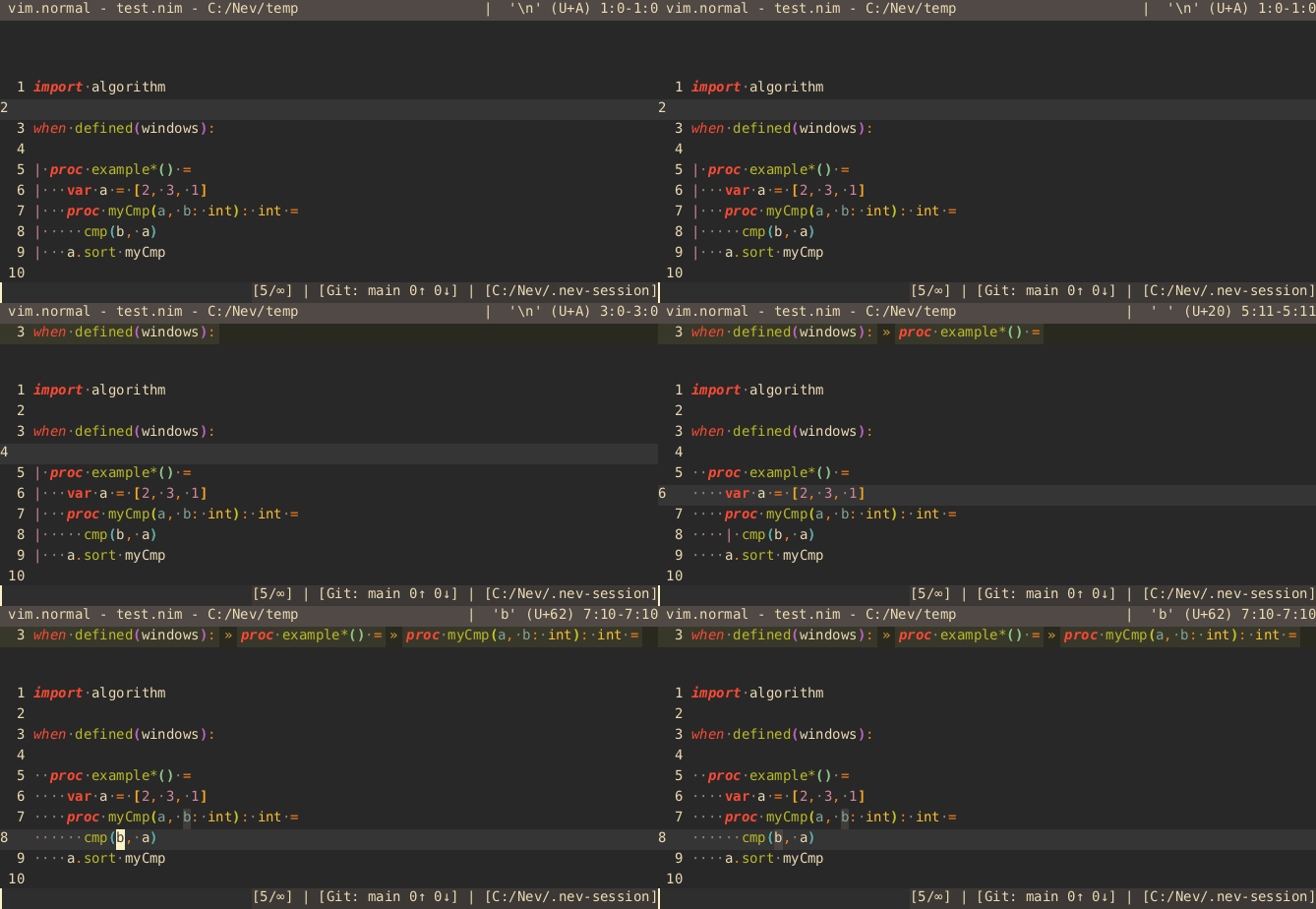
Switching between breadcrumb and full mode:
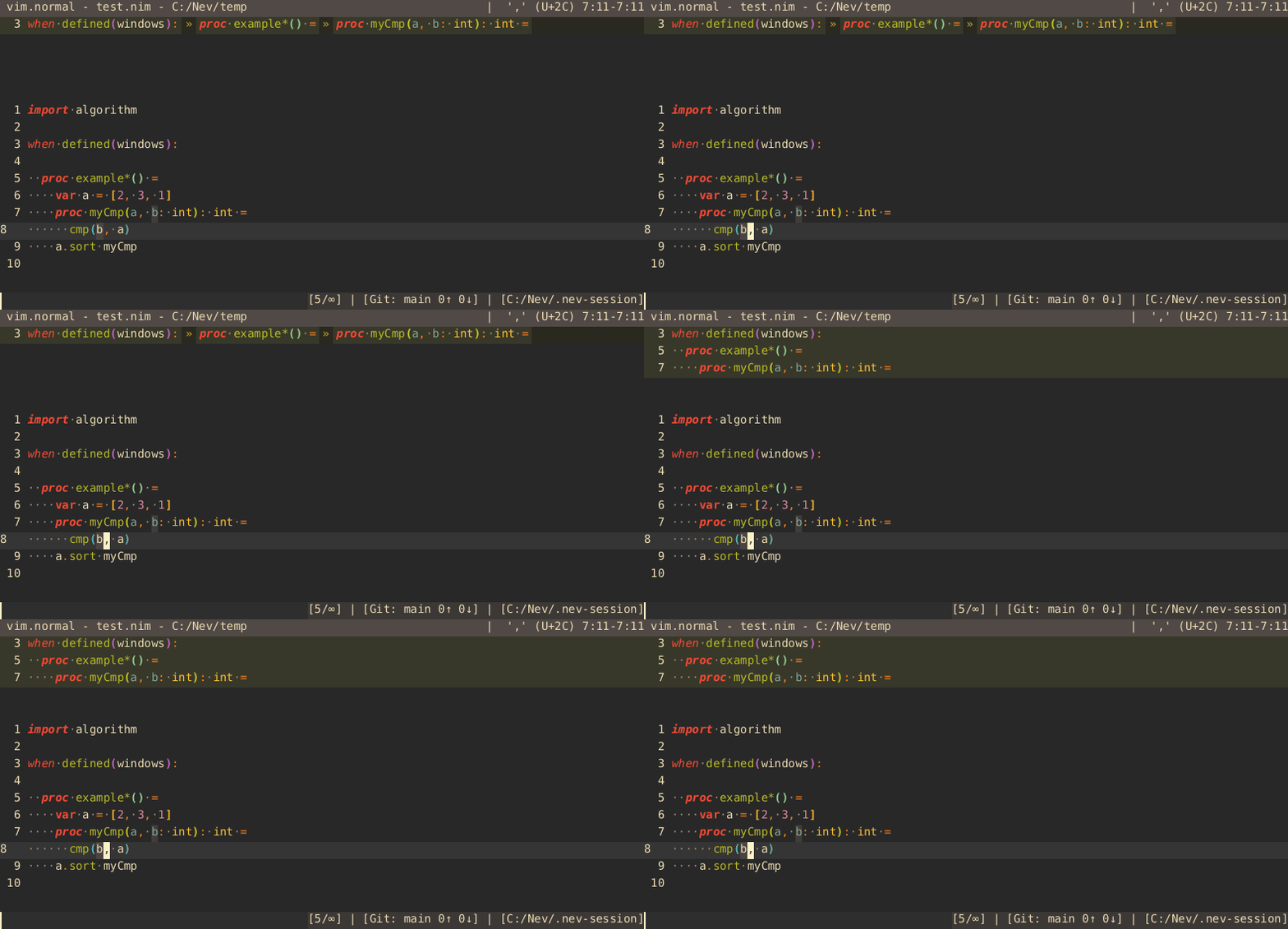
// ~/.nev/settings.json
{
    // Enable or disable context lines
    "context-lines.enabled": true,

    // Display style: "breadcrumb" or "full"
    "context-lines.style": "breadcrumb",

    // Separator between breadcrumb entries
    "context-lines.separator": "»",

    // Regex filter for which node types to show
    "context-lines.show": "(definition\\.(function|macro|class|struct|type|method))|(controlflow.*)",
}
Settings can be overridden per language:
{
    // Don't show conditionals for Python
    "lang.python.context-lines.show": "definition\\.(function|macro|class|struct|type|method)", // Don't show control flow for python
}Context lines use tree-sitter tag queries to identify which AST nodes to display.
Each language can provide a query file at languages/<lang>/queries/tags.scm.
A tags query uses standard tree-sitter query syntax. Each pattern captures:
@name- (optional) the node representing the identifier (function name, class name, etc.)- A qualified capture like
@definition.function,@definition.class,@controlflow.if- The captures which are shown as context lines are specified usingcontext-lines.show
(proc_declaration name: (_) @name) @definition.function
(func_declaration name: (_) @name) @definition.function
(method_declaration name: (_) @name) @definition.method
(template_declaration name: (_) @name) @definition.macro
(macro_declaration name: (_) @name) @definition.macro
(when condition: (_) @name) @controlflow.if
- Create
languages/<lang>/queries/tags.scm. - Write patterns for the node types you want to appear in context lines.
- Use captures like
@definition.function,@definition.class,@definition.method,@definition.macro,@controlflow.if, etc.
The context-lines.show setting is a regex applied to each capture name.
The default value:
(definition\.(function|macro|class|struct|type|method))|(controlflow.*)This means only definition.function, definition.class, definition.method,
definition.macro, definition.struct, definition.type, and any
controlflow.* capture will be shown. You can narrow or widen this per language
using settings overrides.