How to Quickly Set Up FaceUnity Beauty Extension Android Sample Project
Other Language: 简体中文
- Minimum compatibility with Android 5.0 (SDK API Level 21).
- Android Studio 4.1 or higher.
- Real devices running Android 5.0 or higher.
2.1 Obtain Agora App ID -------- Obtain Agora App ID
Obtain App ID and App certificate

2.2 Enter FaceUnity Beauty and click "Contact Us" to obtain an exclusive certificate file
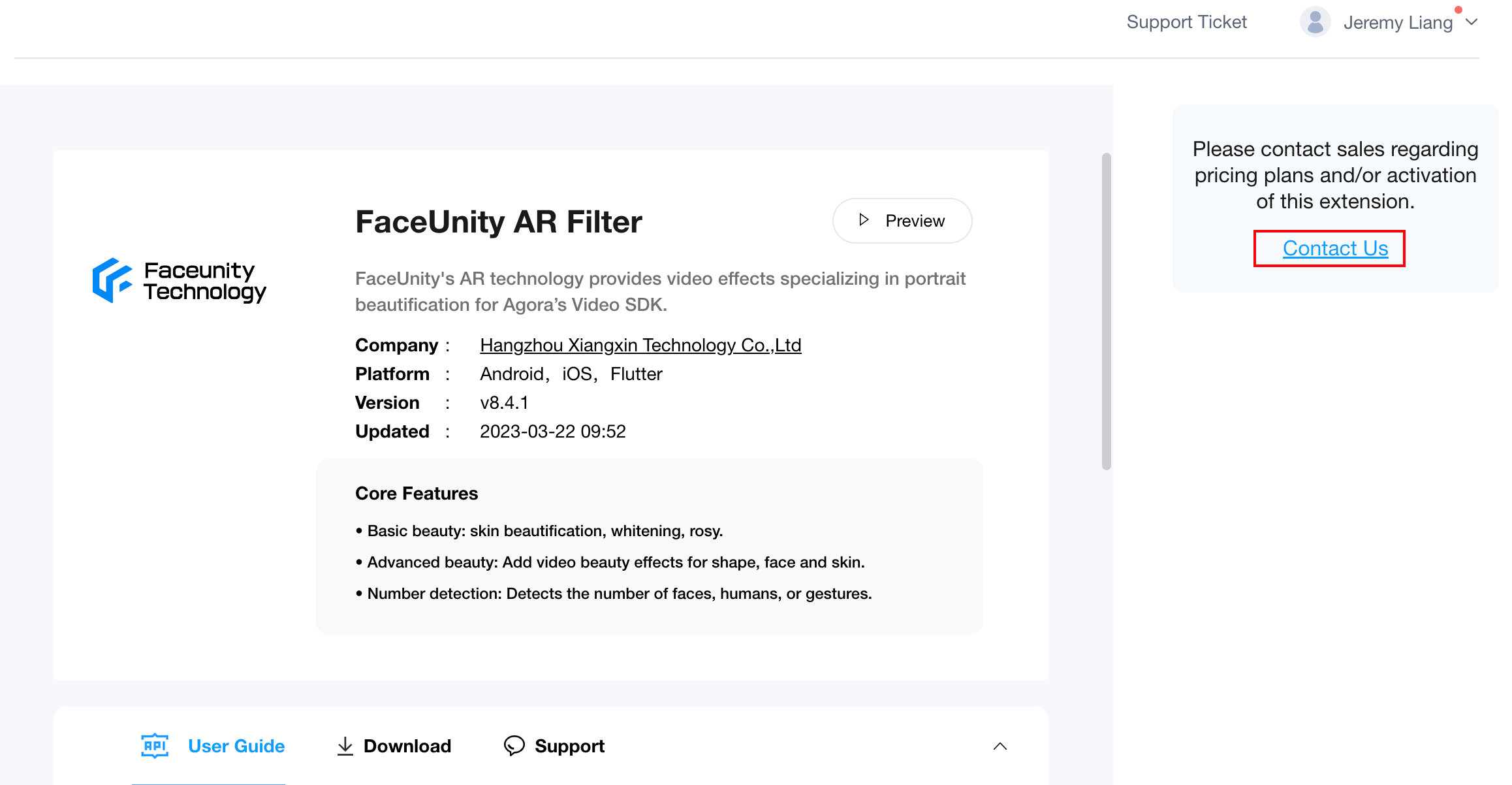
- Provide the package name bound to the license during the application and change "applicationId" in the "build.gradle" file of the project to your own bound package name.

2.3 Fill in the required Agora App ID, token, and FaceUnity certificate file name in Config.java of the project. Note⚠️ :
- If token is not activated for appid, mToken can be left blank.

appID: Agora App ID
token: Token corresponding to Agora App ID. If token is not activated for appid, it can be left blank.
2.4 Copy the necessary resource files to the extension_demo/src/main/assets/ directory of the project.

2.5 Copy the FaceUnity Beauty License authpack.java file to the project's extension_demo/src/main/java/io/agora/rte/extension/faceunity/ directory. (This Demo contains an authpack bound to the package name io.agora.rte.extension.faceunity)

2.6 Download the android-release.aar file of the extension and copy it to the app/libs/ directory of the project. (This Demo already has this aar file in place)

2.7 Open the project with Android Studio, synchronize the project with Gradle files, connect to an Android device (not emulator), and run the project.
This project shows how to quickly integrate Agora Marketplace FaceUnity beauty extension through simple API calls.
├── extension_demo
│   ├── src
│   │   ├── androidTest //Contains testing code for Android devices.
│   │   └── main
│   │       ├── assets //Contains all resource files required for beauty.
│   │       ├── java //Contains the main Java code.
│   │       │   ├── io/agora/rte/extension/faceunity/ //Contains all the configuration needed to be filled.
│   │       │   └── ...
│   │       └── res //Contains all resource files.
│   │           └── libs //Contains the extension aar.
│   └── build.gradle //Gradle build script
├── gradle //Gradle file directory.
├── .gitignore //Git ignore file.
├── build.gradle //Project build script.
├── gradlew //Gradle Wrapper for Unix systems.
├── gradlew.bat //Gradle Wrapper for Windows systems.
├── settings.gradle //Settings for Gradle.
└── local.properties //Configuration file for local Android SDK directory.


- enableExtension: Enable/Disable Extension
- enableAITracking: Enable Face Detection Display Results
- setComposer: Set Beauty Effect
- setSticker: Set Sticker Effect
- ENABLELIGHTMAKEUP: Enable/Disable Lightmakeup Effect
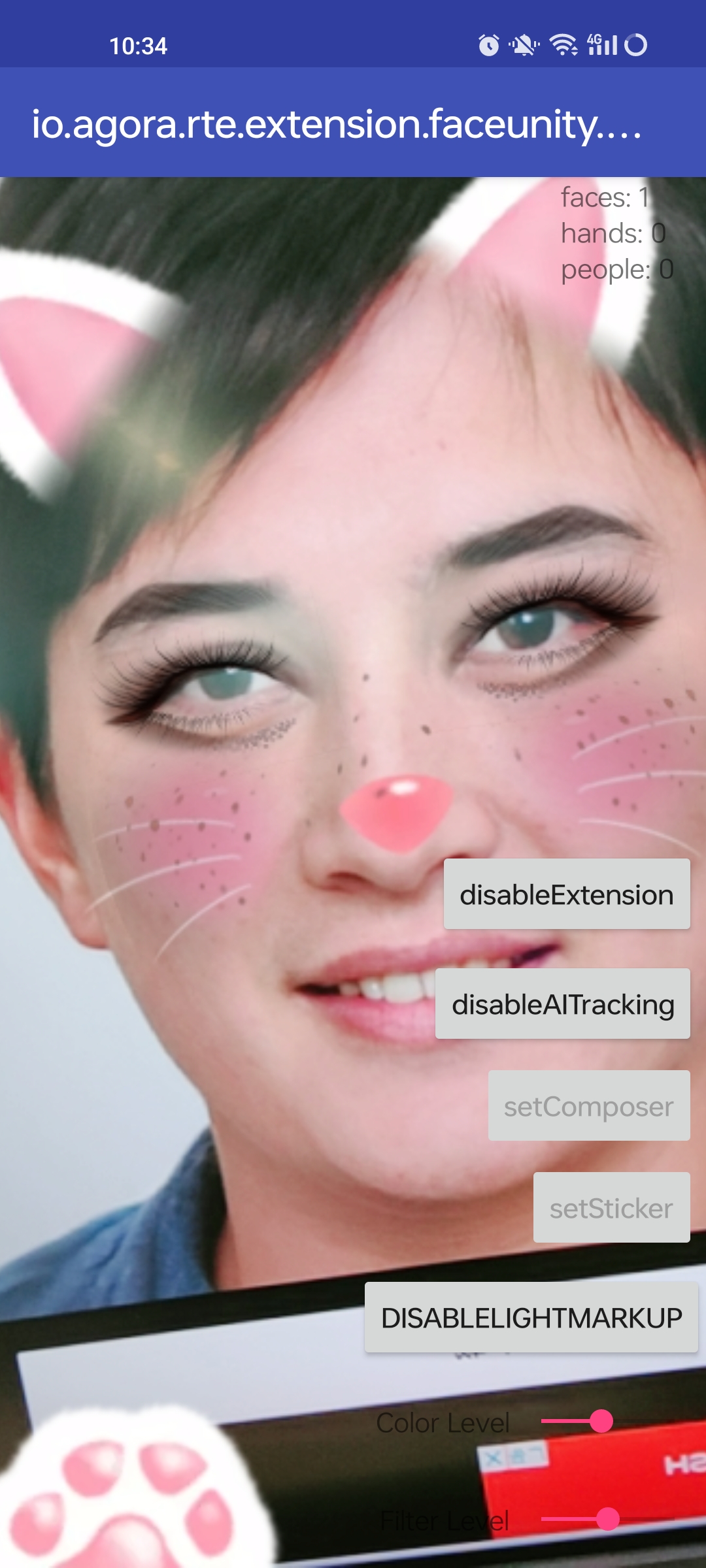
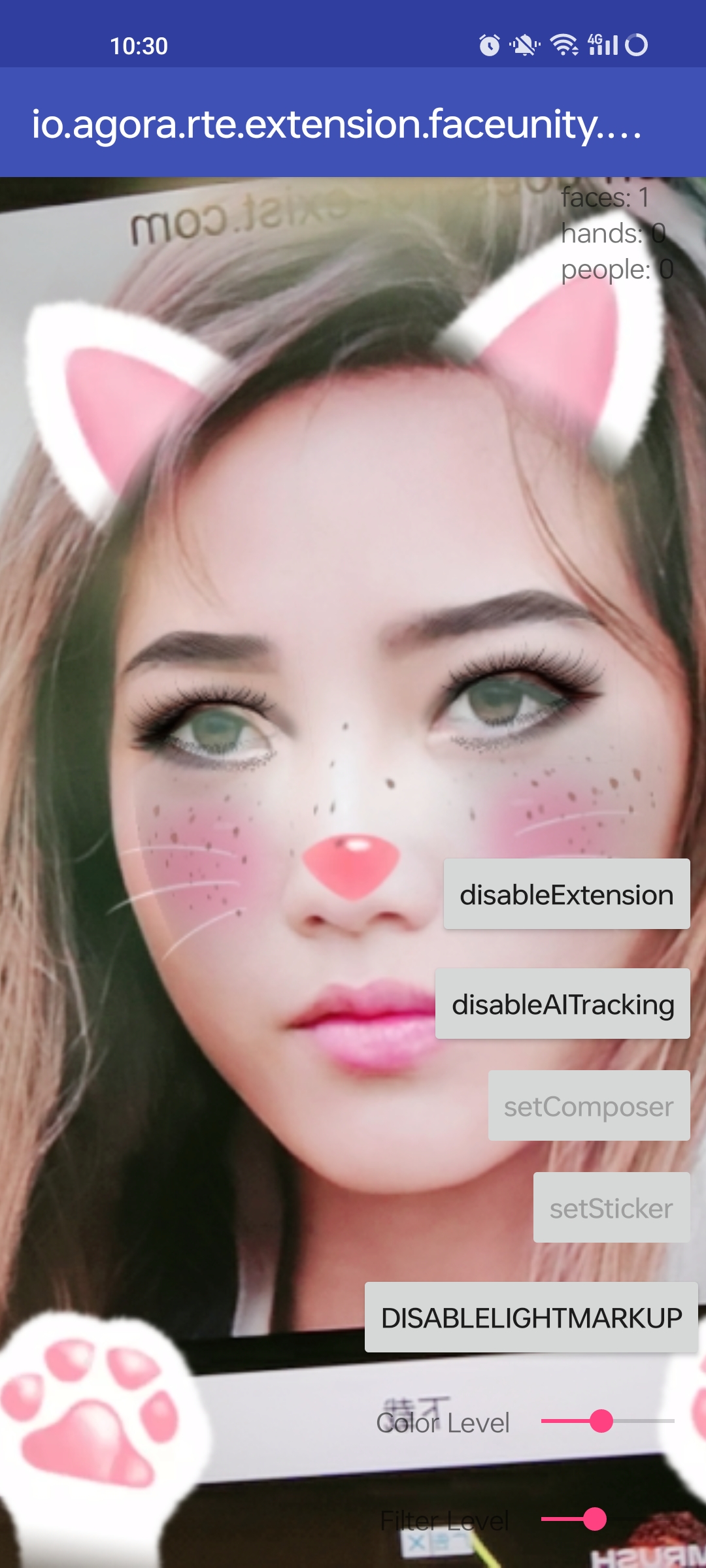
Obtain Agora App ID at:Obtain Agora App ID
1、The extension dynamic library is not saved in the correct location or not imported. 2、The files in the Xiangxin resource package are not saved in the correct location or some files are missing. 3、The certificate file is inconsistent with the app package name, resulting in authentication failure.
Agora Marketplace Homepage: https://www.agora.io/en/agora-extensions-marketplace/
Solution 1: If you are already using Agora service or in contact with Agora sales or service, you can contact them directly.
Solution 2: Email support@agora.io for consultation.